Use Explore Data on the Parts grid to build your own filters, group parts by a column such as supplier, export to CSV and turn your results into charts.
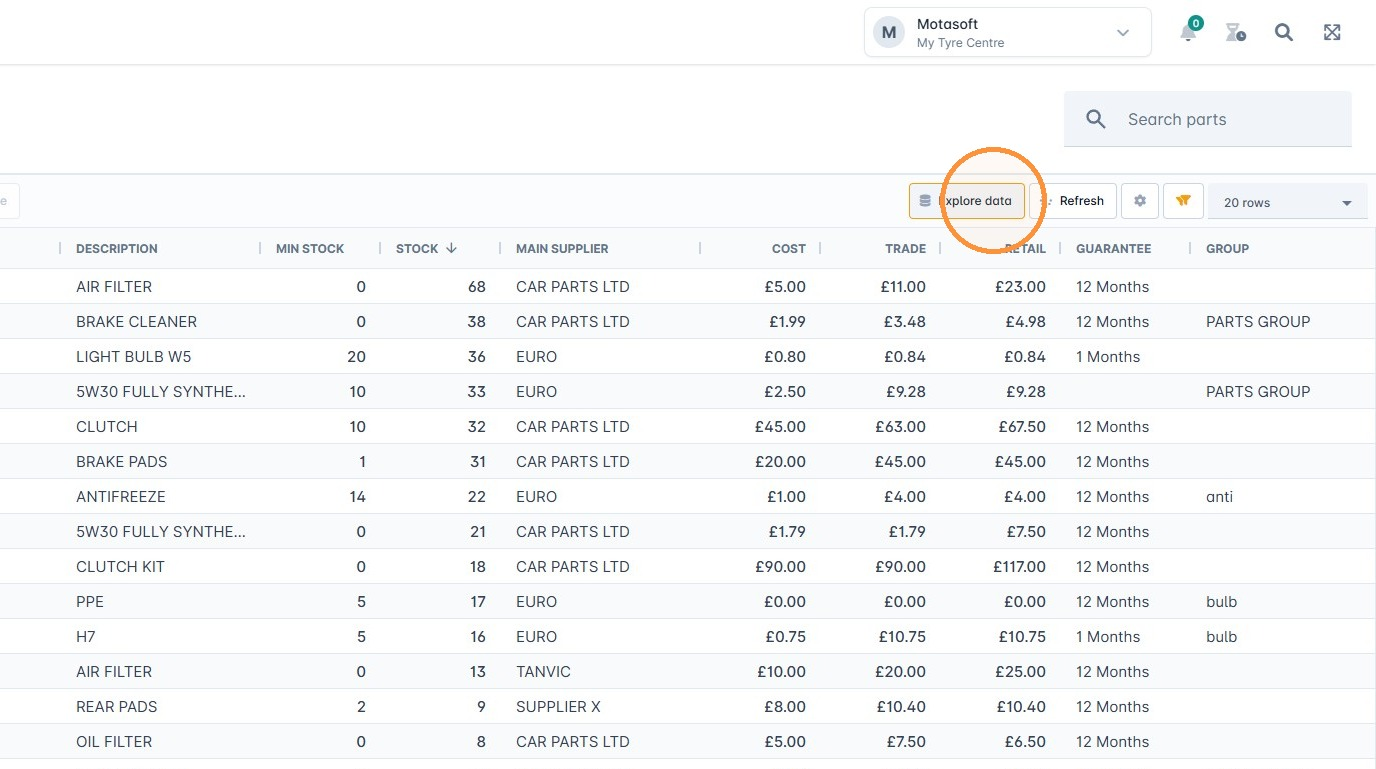
1. On the Parts list, click Explore Data. It gives you more control than the standard grid, including CSV exports.
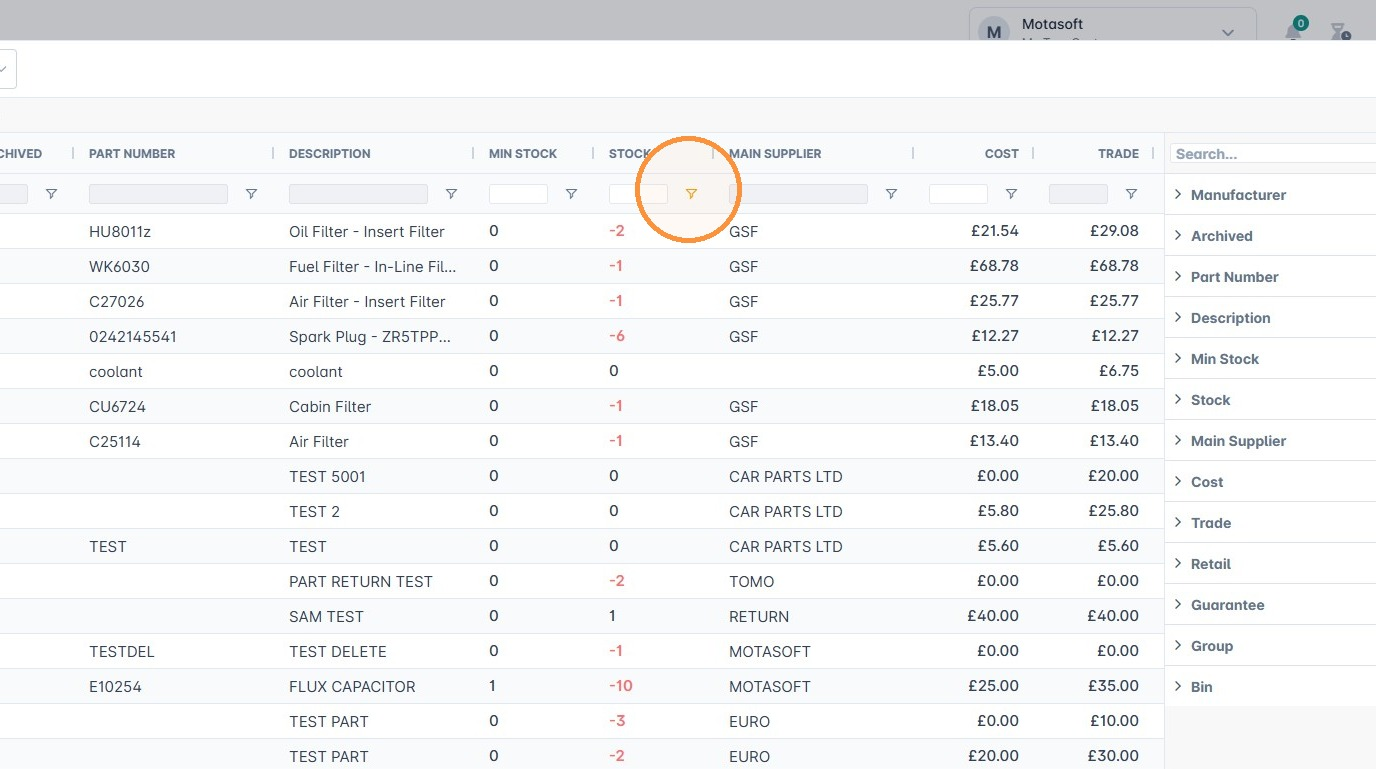
2. Create your own filters. For example, filter to show only parts with no stock.
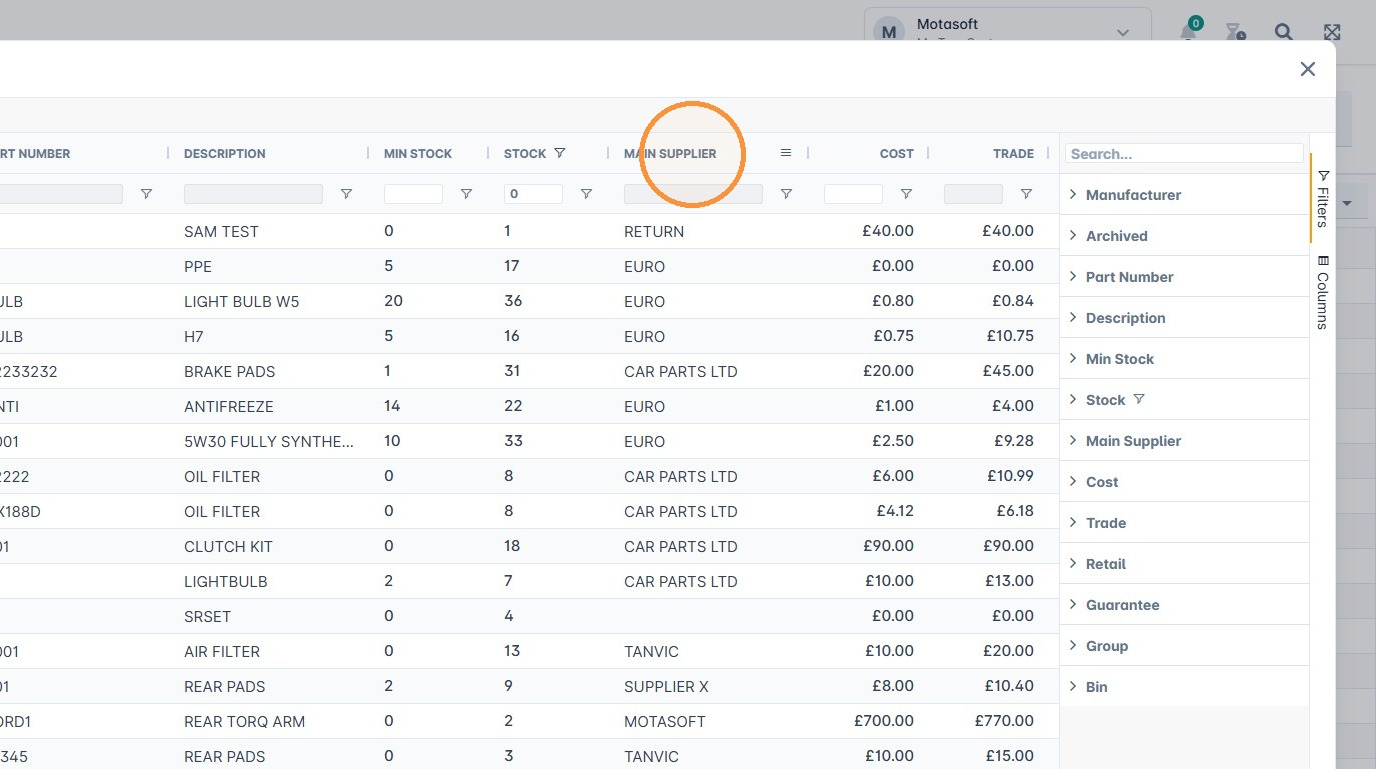
3. Group your parts by dragging a column header into the area at the top of the grid, for example Main Supplier. Your parts are then shown grouped by supplier.
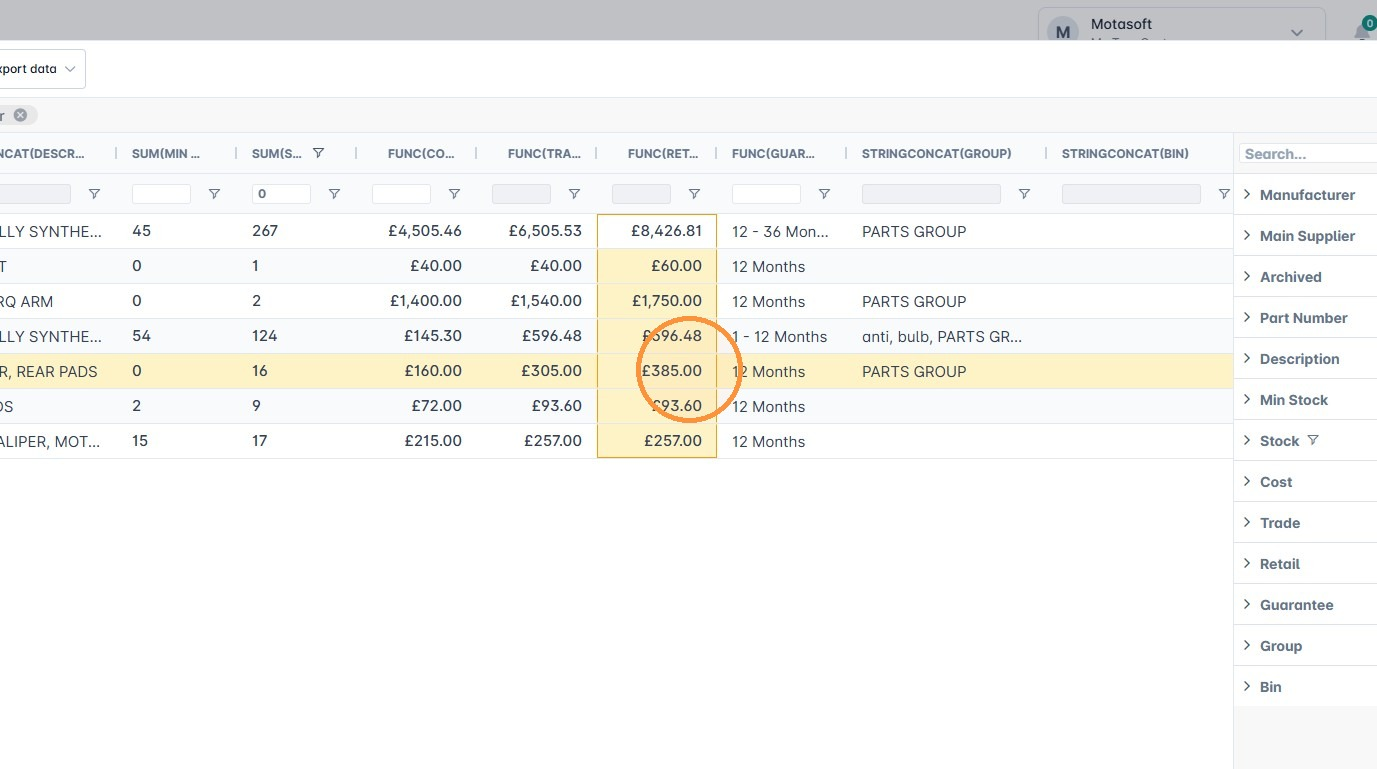
4. To visualise your data, click and drag to select some cells, then right-click and use the menu to create a chart or graph.
Was this article helpful?
That’s Great!
Thank you for your feedback
Sorry! We couldn't be helpful
Thank you for your feedback
Feedback sent
We appreciate your effort and will try to fix the article