Import your parts or tyres, with their prices, into VGM from a CSV file using the default configuration.
Overview
Importing a stock list lets you load your parts or tyres, with their prices, into VGM from a CSV file. Once they are in, you can add them to jobsheets, invoices and quotations in a few clicks instead of typing each one in by hand, so your work is priced up quickly and accurately.
VGM includes a default configuration for parts and another for tyres, so you can import straight away using our example CSV file. If your own file uses different column names, you can create your own stock import configuration instead.
Import parts
1. Go to Parts & Tyres > Stock imports.
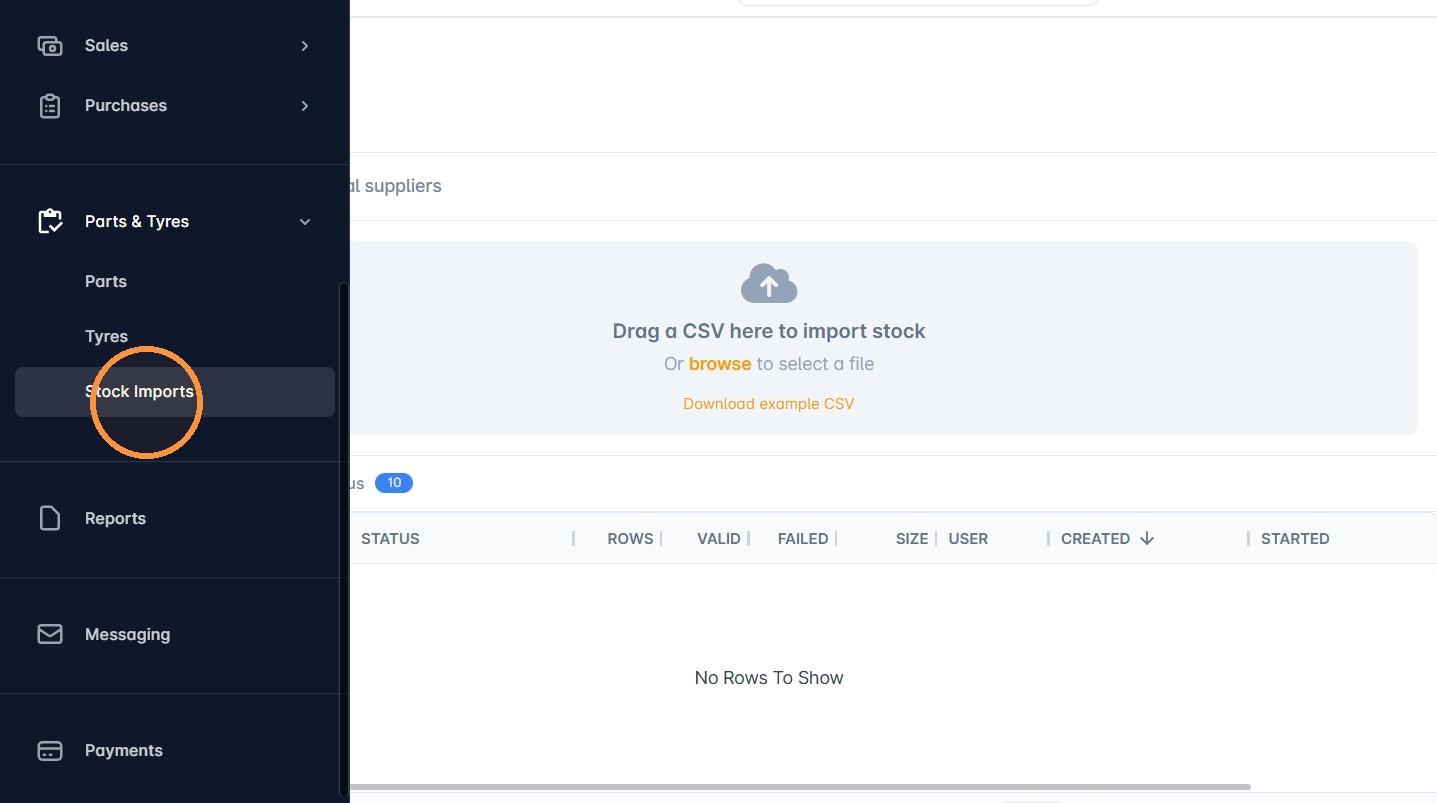
2. Click Download example CSV.
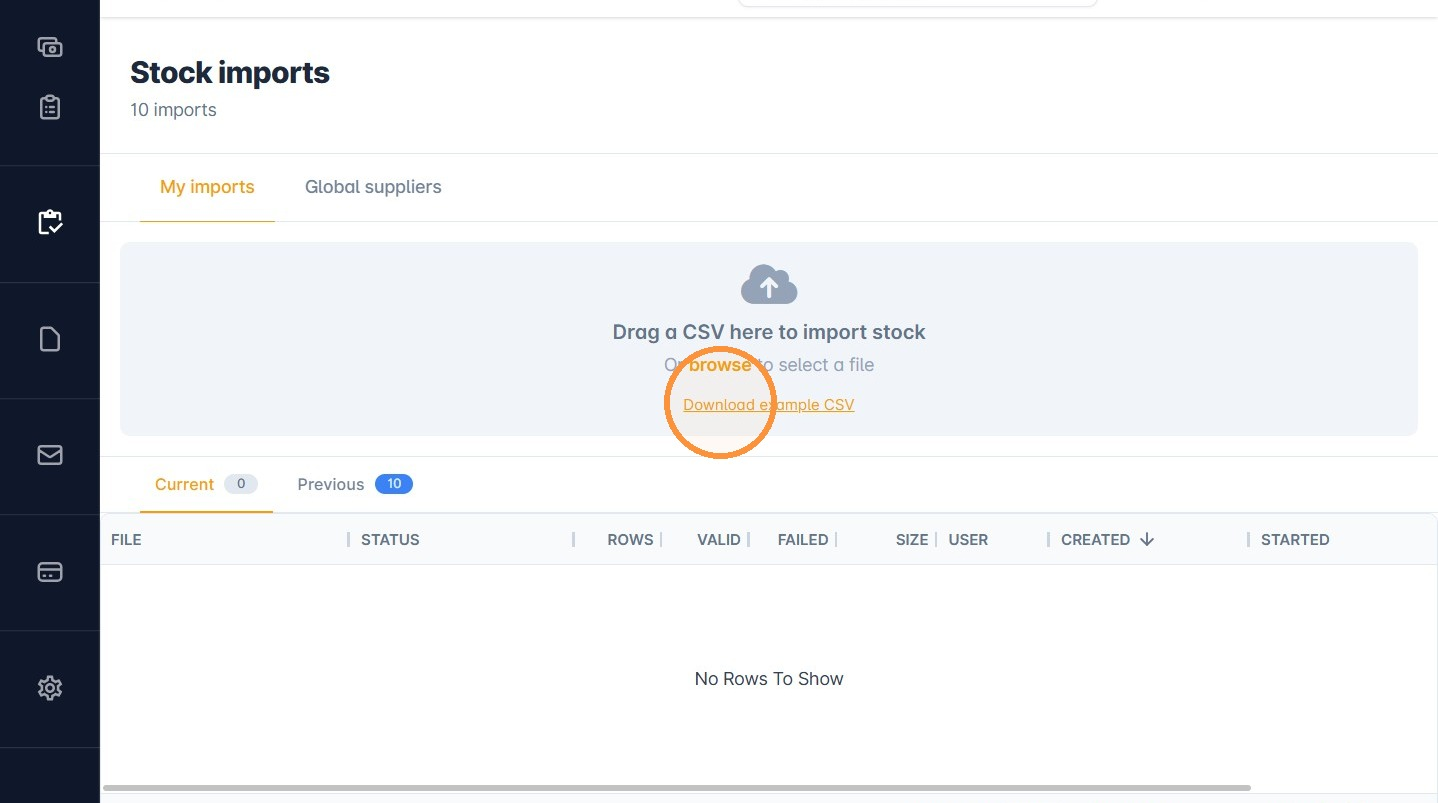
3. Open the example file. The second row gives a hint for what to enter in each column. The required columns are part_number, description and supplier. Everything else is optional.
Replace the hints row with your own stock, then save the file with a new name.
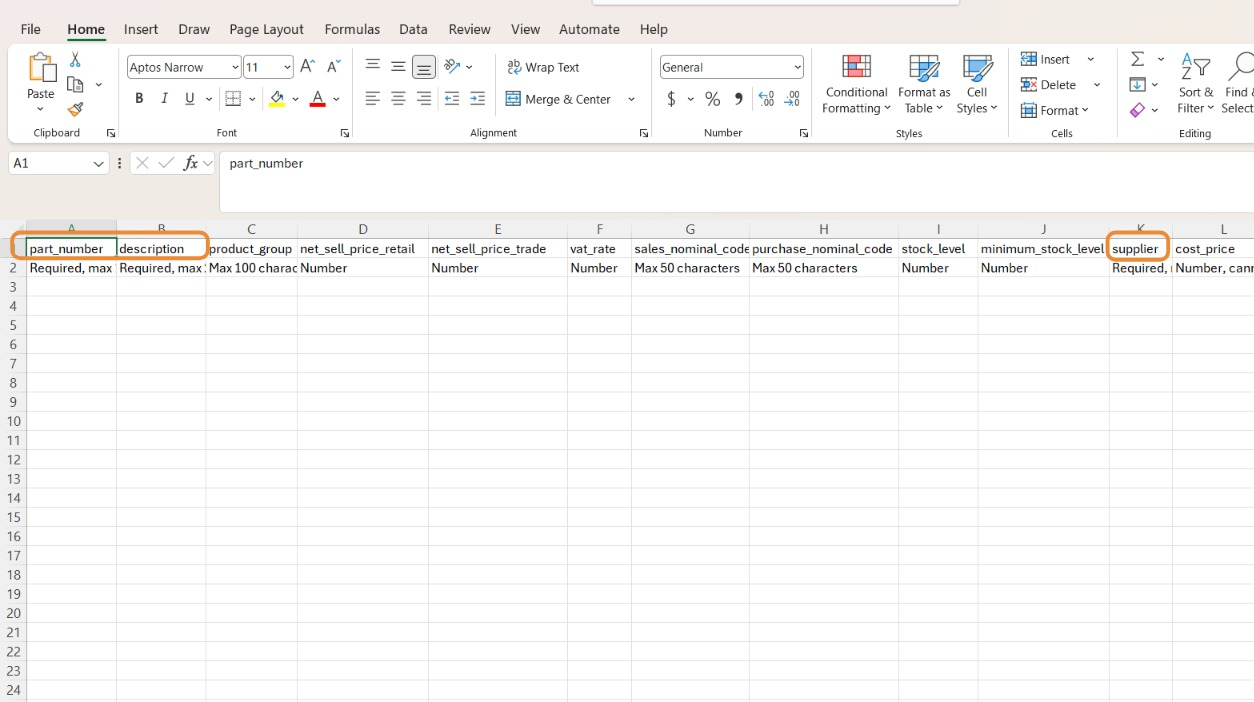
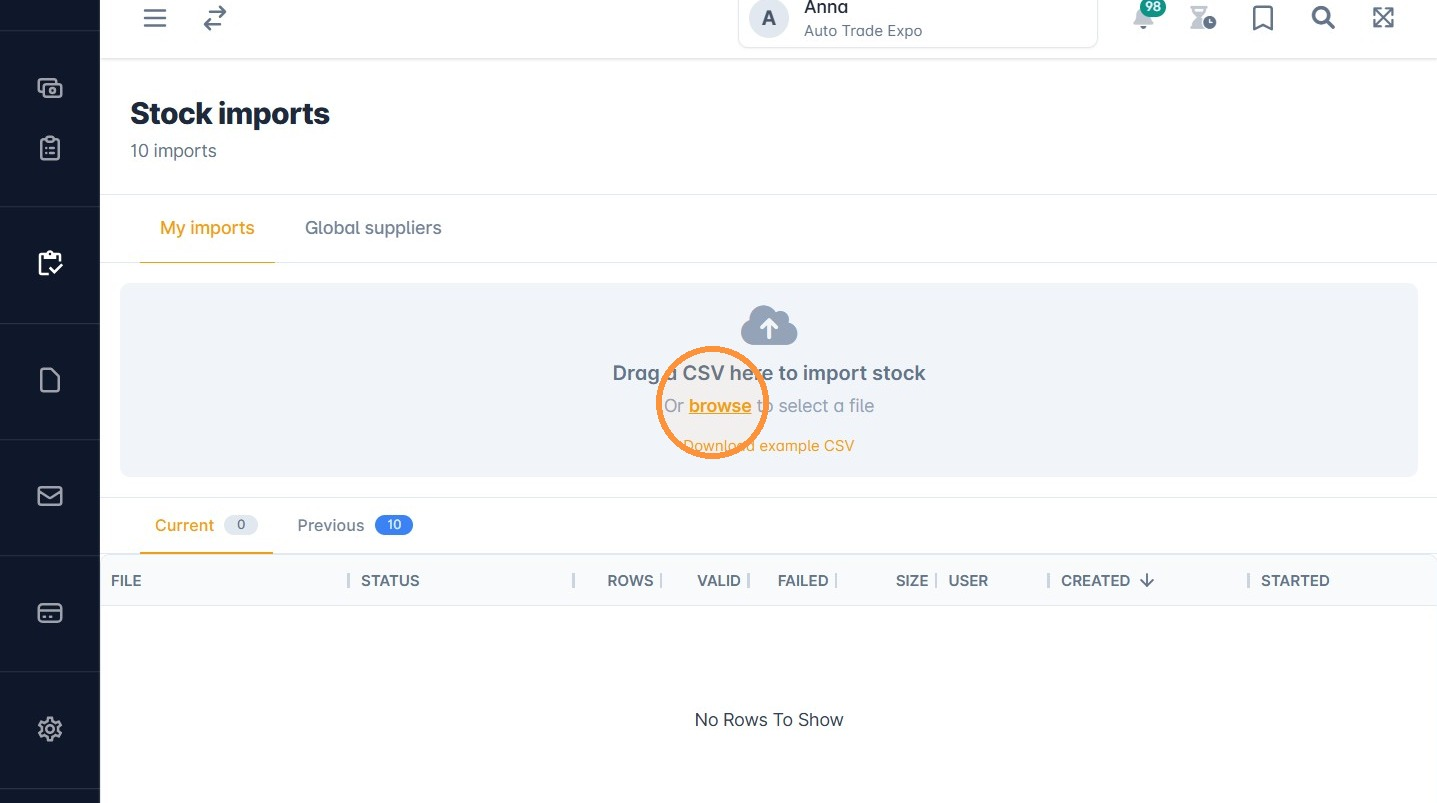
4. Back on the Stock imports screen, click browse and select your CSV file.
5. Check that Default for parts is selected in the Configuration list. It is selected for you by default.
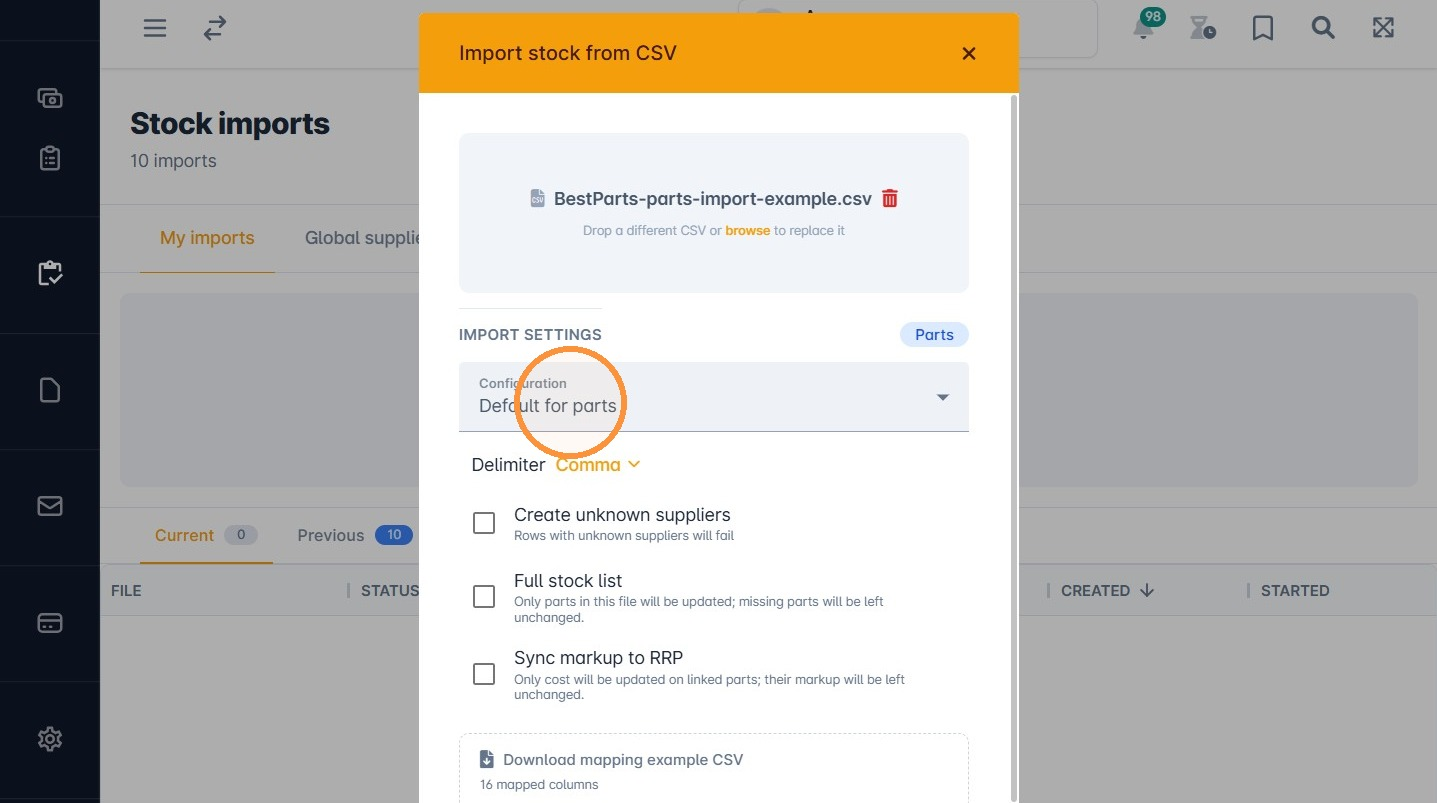
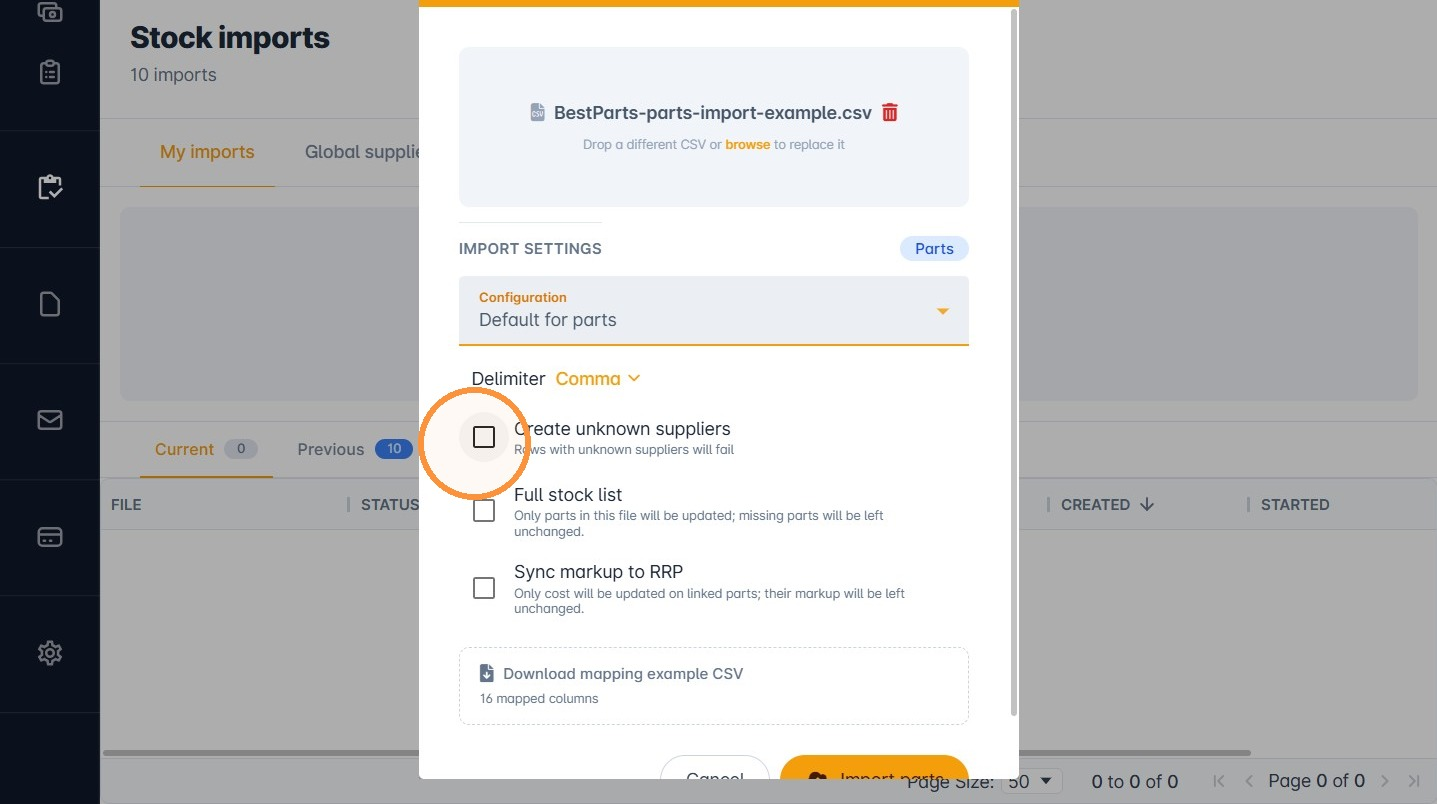
6. Tick Create unknown suppliers. Any supplier in your file that is not in VGM yet is then created automatically.
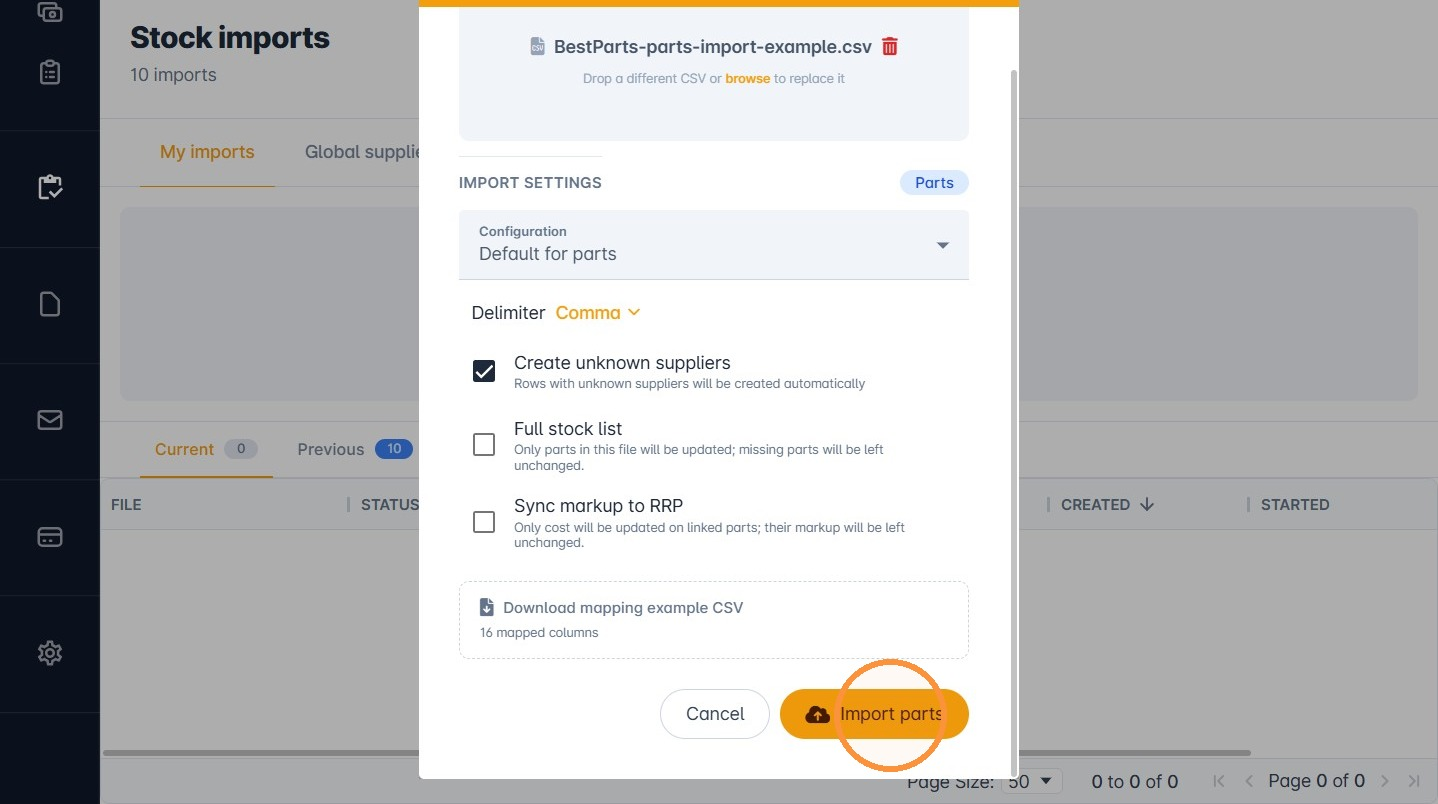
7. Click Import parts.
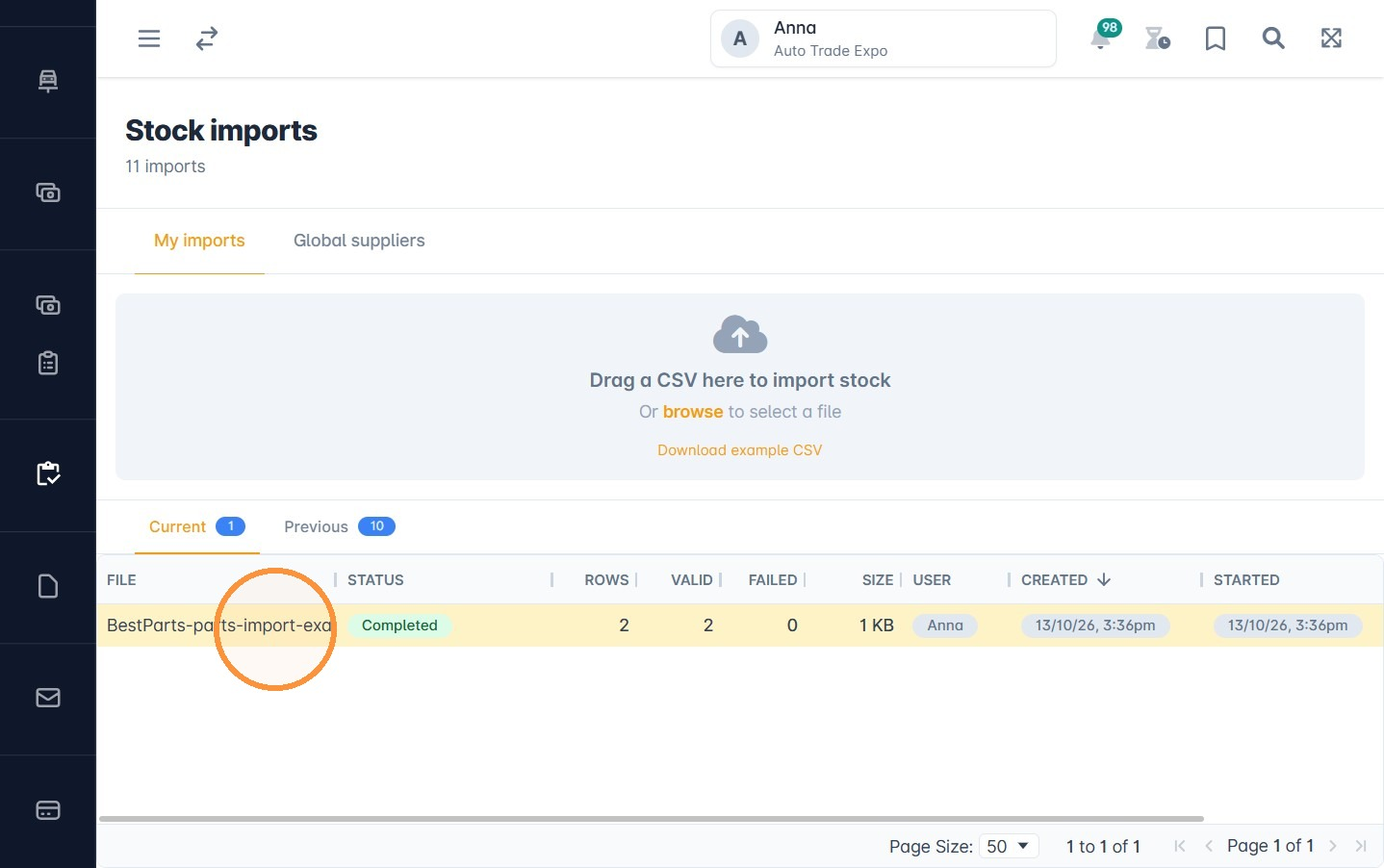
8. When the import finishes, the Stock Import Results screen opens. Rows that imported successfully are on the Completed tab. Rows that need correcting are on the Failed tab.
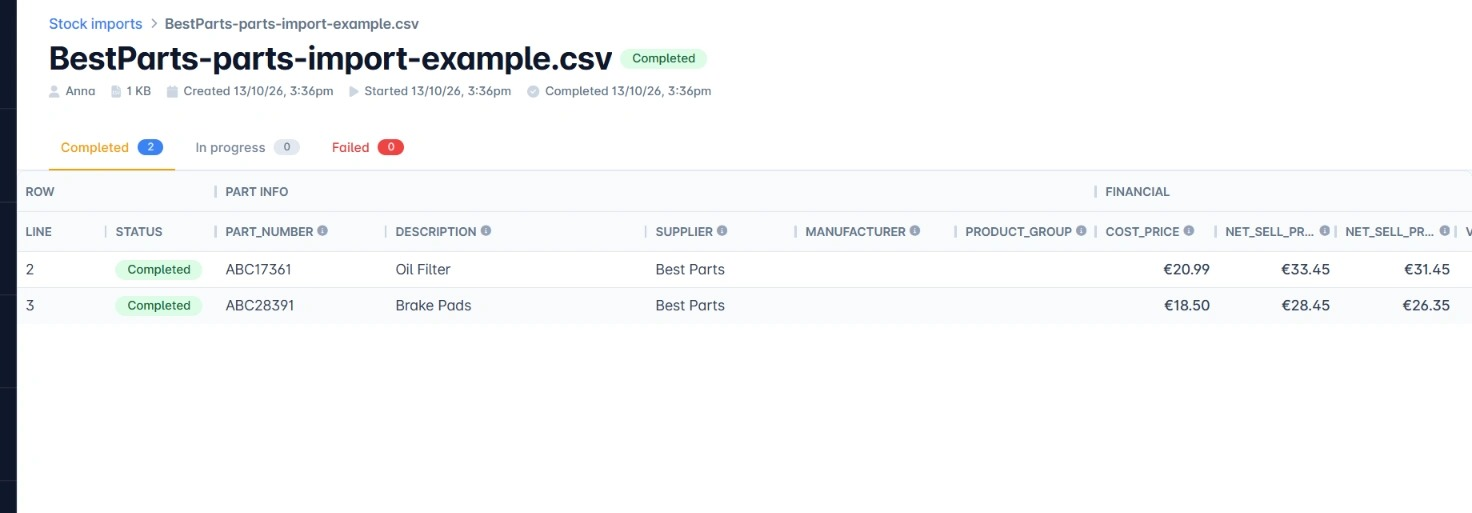
Tip: to see the results again later, go to the Stock imports screen and click the import record.
Import tyres
Tyres work the same way, with a different default configuration and a few extra required columns.
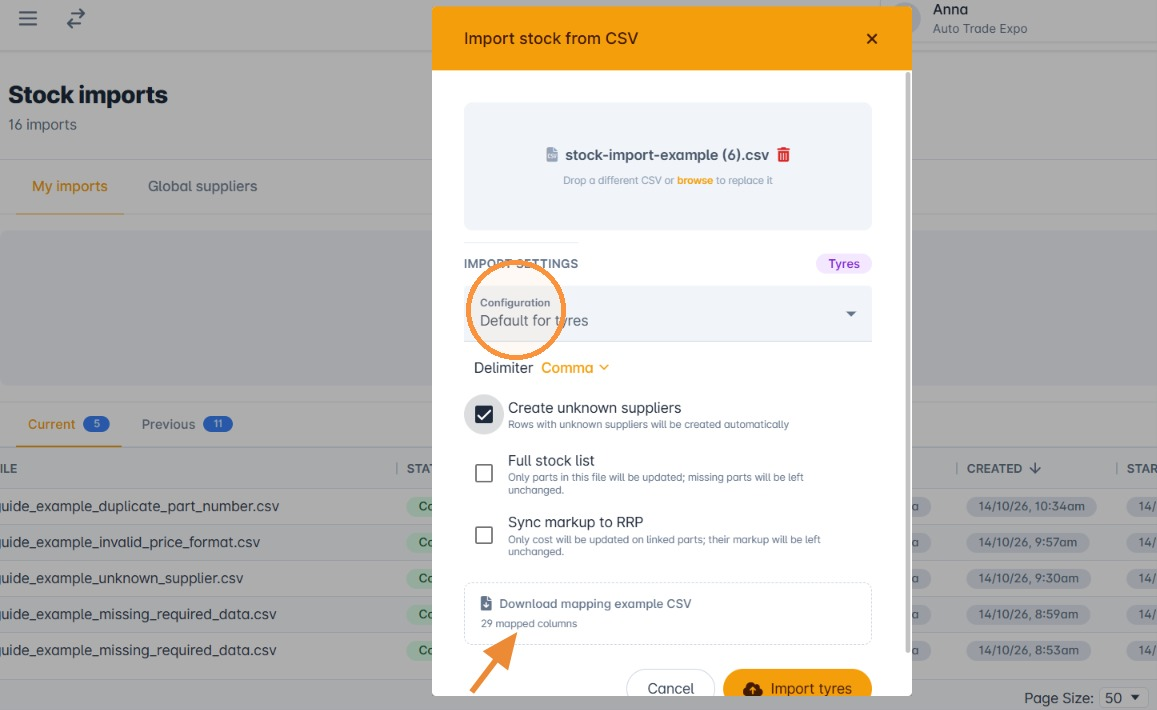
9. Select Default for tyres in the Configuration list and click Download example CSV.
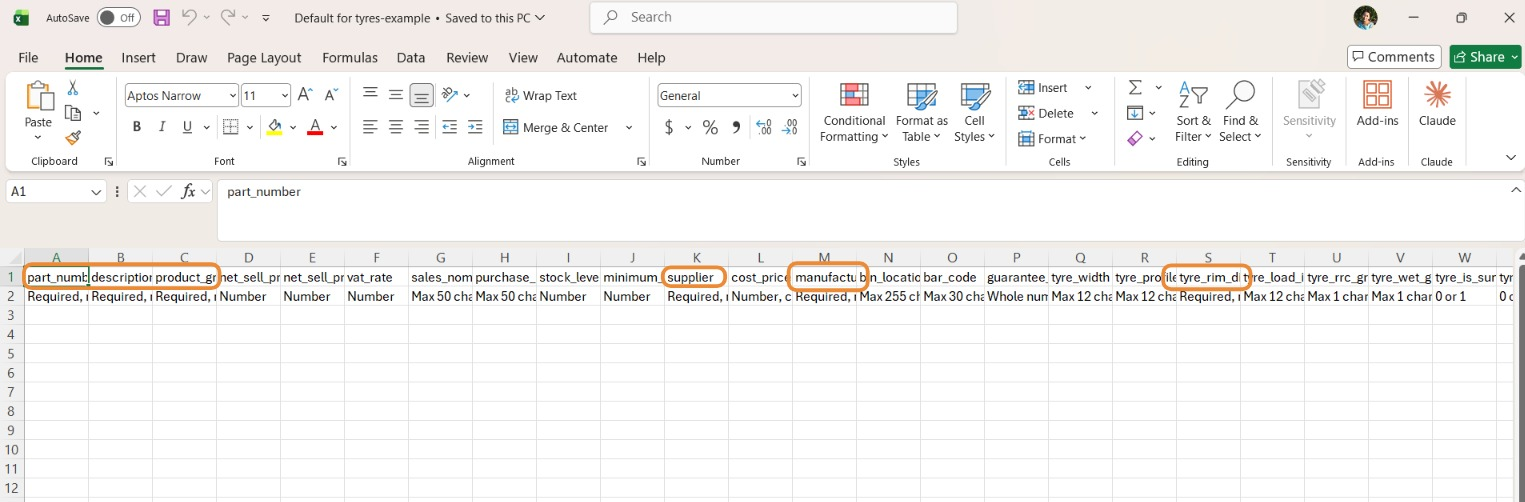
10. Open the example file and fill it in as you did for parts. The required columns are part_number, description, product_group, supplier, manufacturer and tyre_rim_diameter.
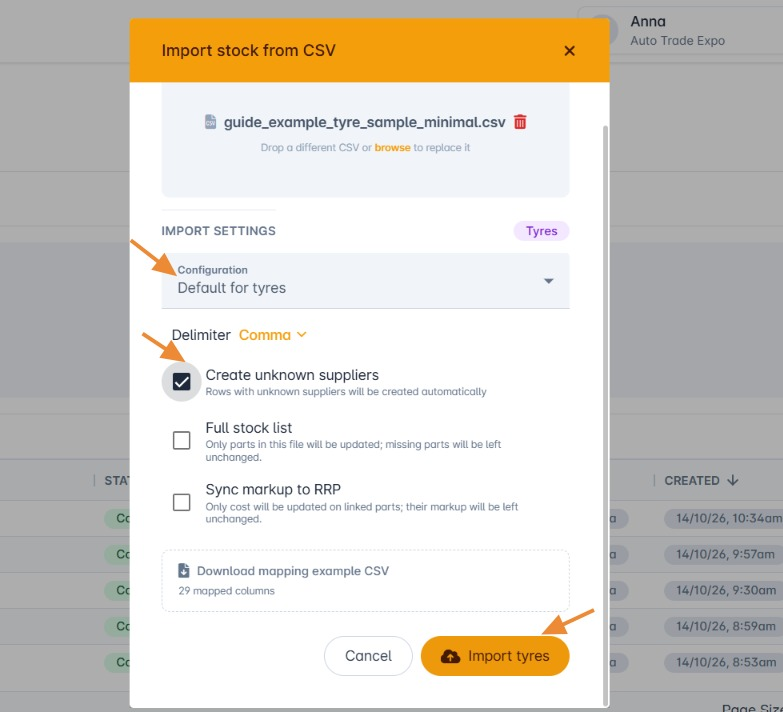
11. Drag and drop your CSV file onto the Stock imports screen (or click browse), check Default for tyres is selected, tick Create unknown suppliers and click Import tyres. The results screen then shows whether the import completed or any data needs correcting.
Was this article helpful?
That’s Great!
Thank you for your feedback
Sorry! We couldn't be helpful
Thank you for your feedback
Feedback sent
We appreciate your effort and will try to fix the article