Keep imported stock up to date by uploading a new file from your supplier, and choose whether to update cost prices only or retail and trade prices as well.
Update prices on existing items
1. Go to Parts & Tyres > Stock imports, upload the new file from your supplier and select the same import configuration. Existing parts or tyres are updated, matched by part number and supplier.
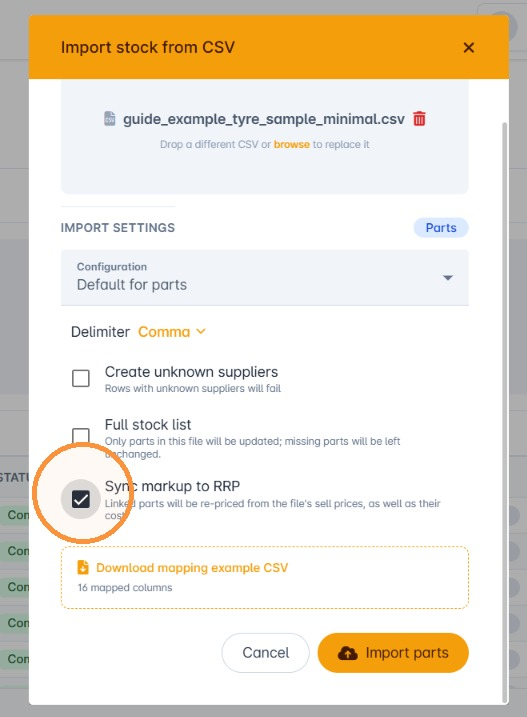
2. Decide how prices are updated using the Sync markup to RRP checkbox.
Leave it unticked to update cost prices only. Retail and trade prices are recalculated from the new cost price and your existing markup.
Tick it to update cost, retail and trade prices exactly as they appear in the CSV file.
Replace a supplier's stock list
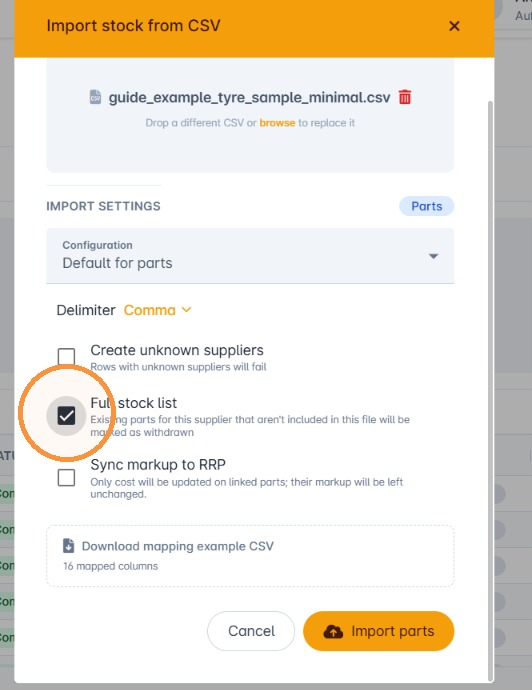
3. To replace a supplier's imported stock with a new list, upload the new CSV file, select the import configuration and tick Full stock list. Then run the import. Existing parts for that supplier that are not in the new file are marked as withdrawn.
Was this article helpful?
That’s Great!
Thank you for your feedback
Sorry! We couldn't be helpful
Thank you for your feedback
Feedback sent
We appreciate your effort and will try to fix the article