Set up an import configuration that tells Virtual Garage Manager how the columns in your own stock CSV file match its parts or tyre fields. You only need to do this once for each file format.
Overview
Importing a stock list lets you load your parts or tyres, with their prices, into VGM from a CSV file. Once they are in, you can add them to jobs and quotes in a few clicks instead of typing each part in by hand, so your work is priced up quickly and accurately.
Before you can import a file, VGM needs to know which column in your CSV holds which piece of information, such as the part number, description and price. You set this up once in a stock import configuration and reuse it every time you upload a file in the same format.
This article covers creating that configuration.
Create the configuration
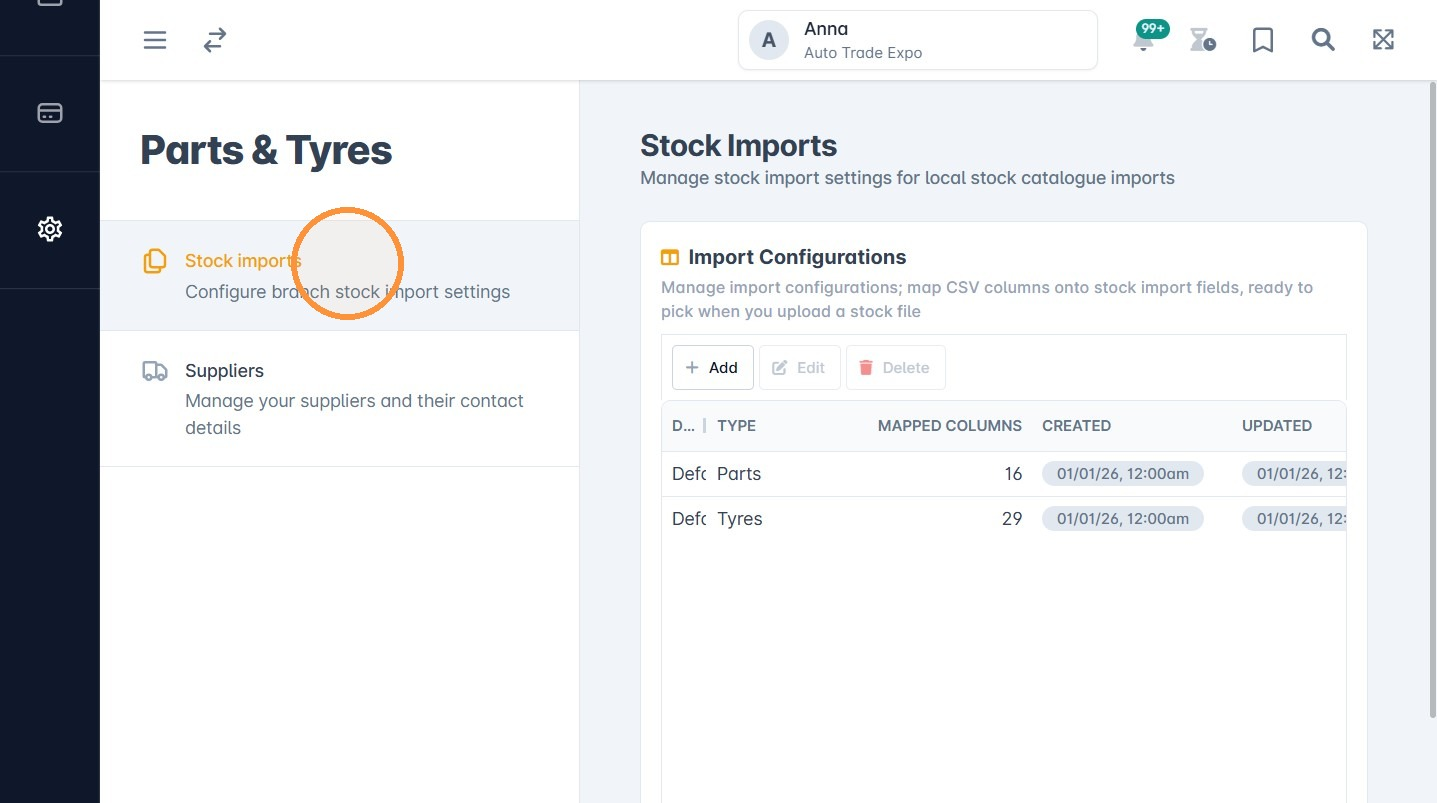
1. Go to Config > Parts & Tyres > Stock imports.
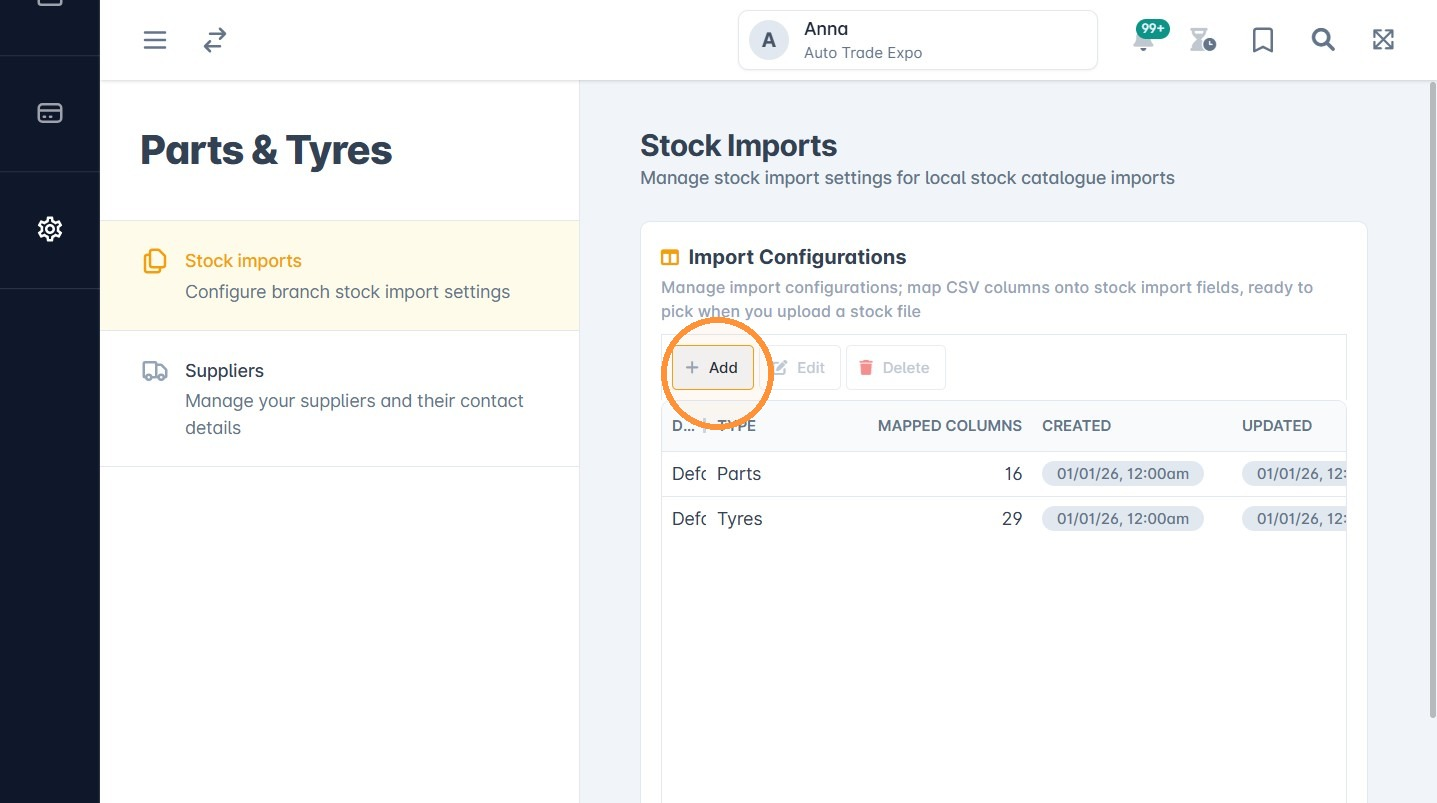
2. Click Add.
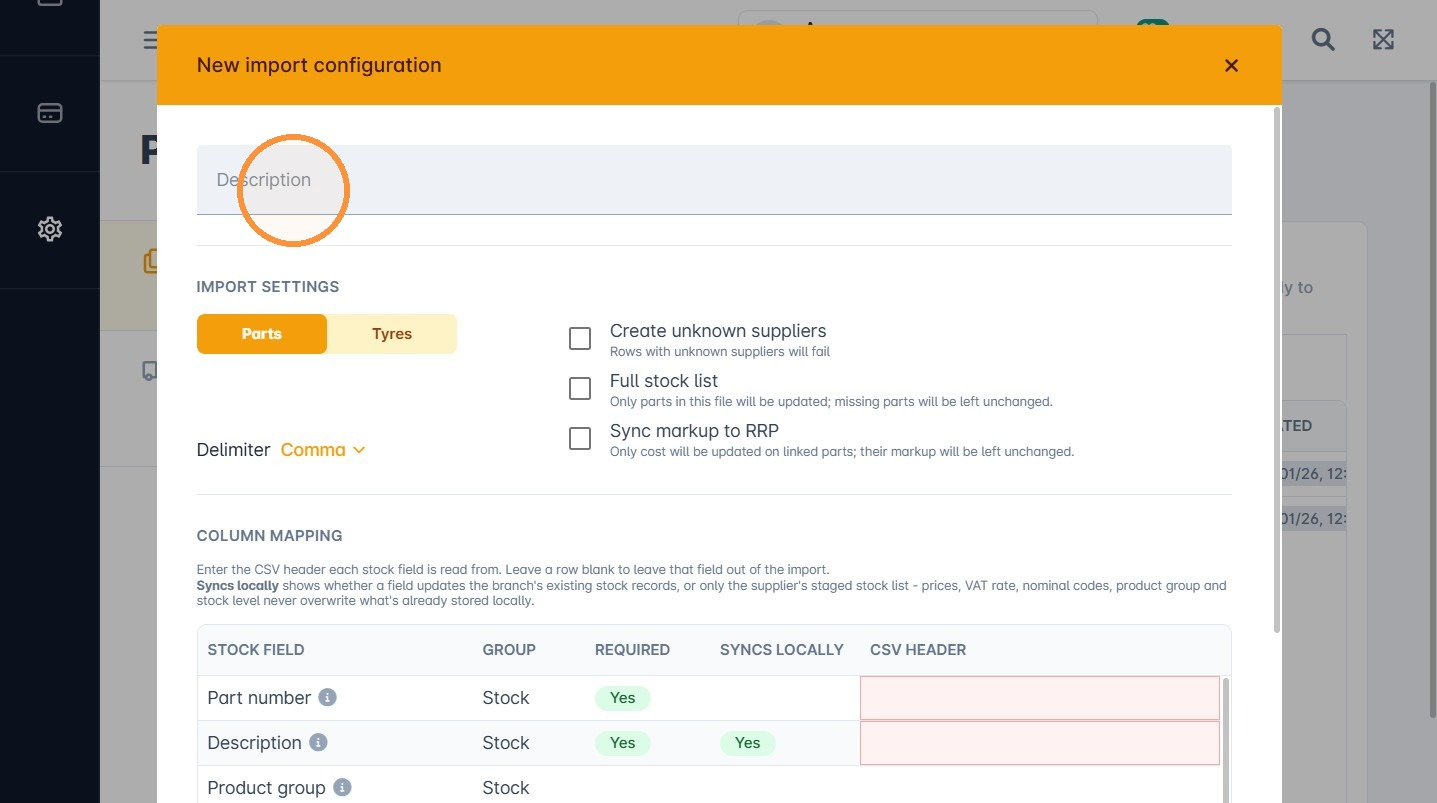
3. Enter a description for the import configuration, for example the name of your supplier or the type of file.
4. Select the type of stock in your file: Parts or Tyres.
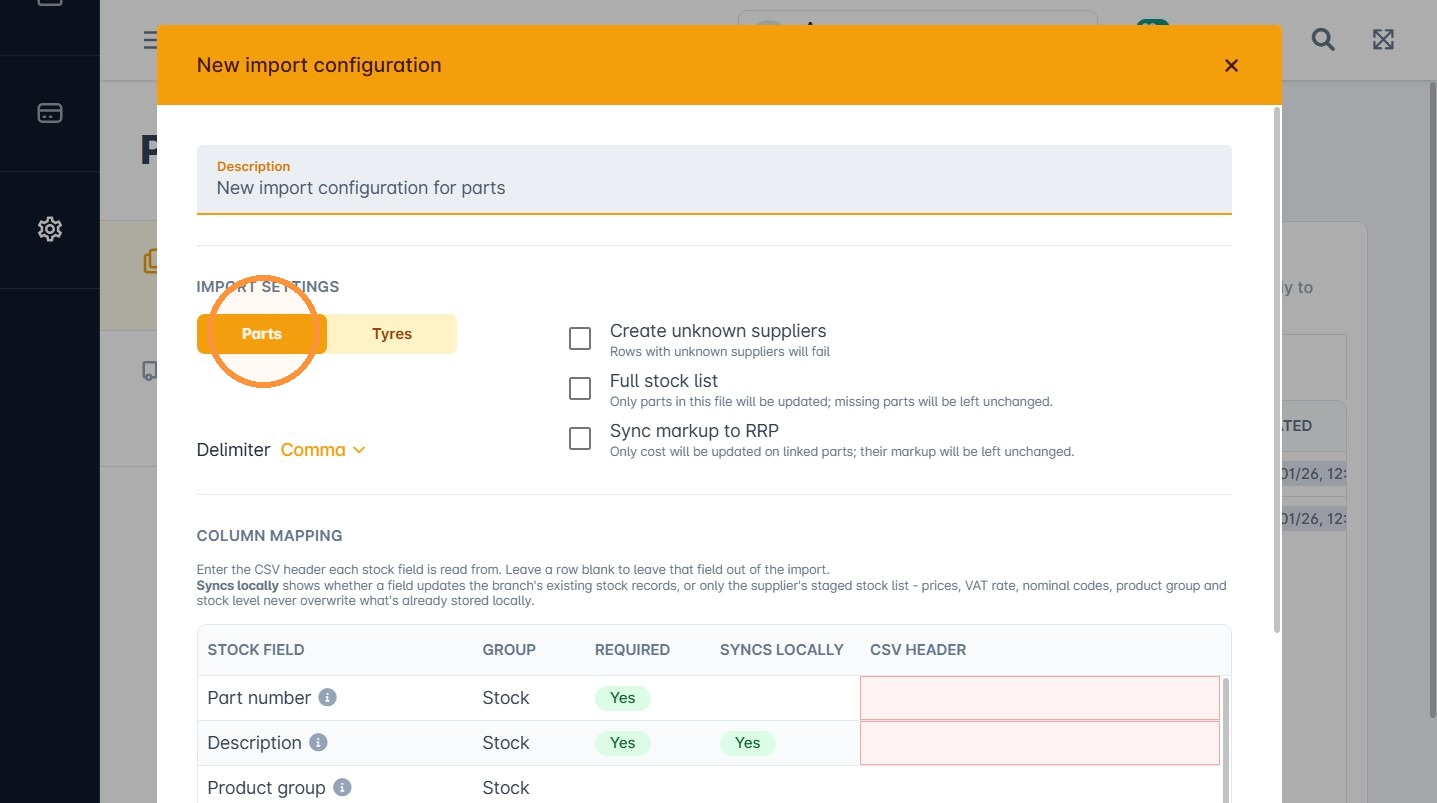
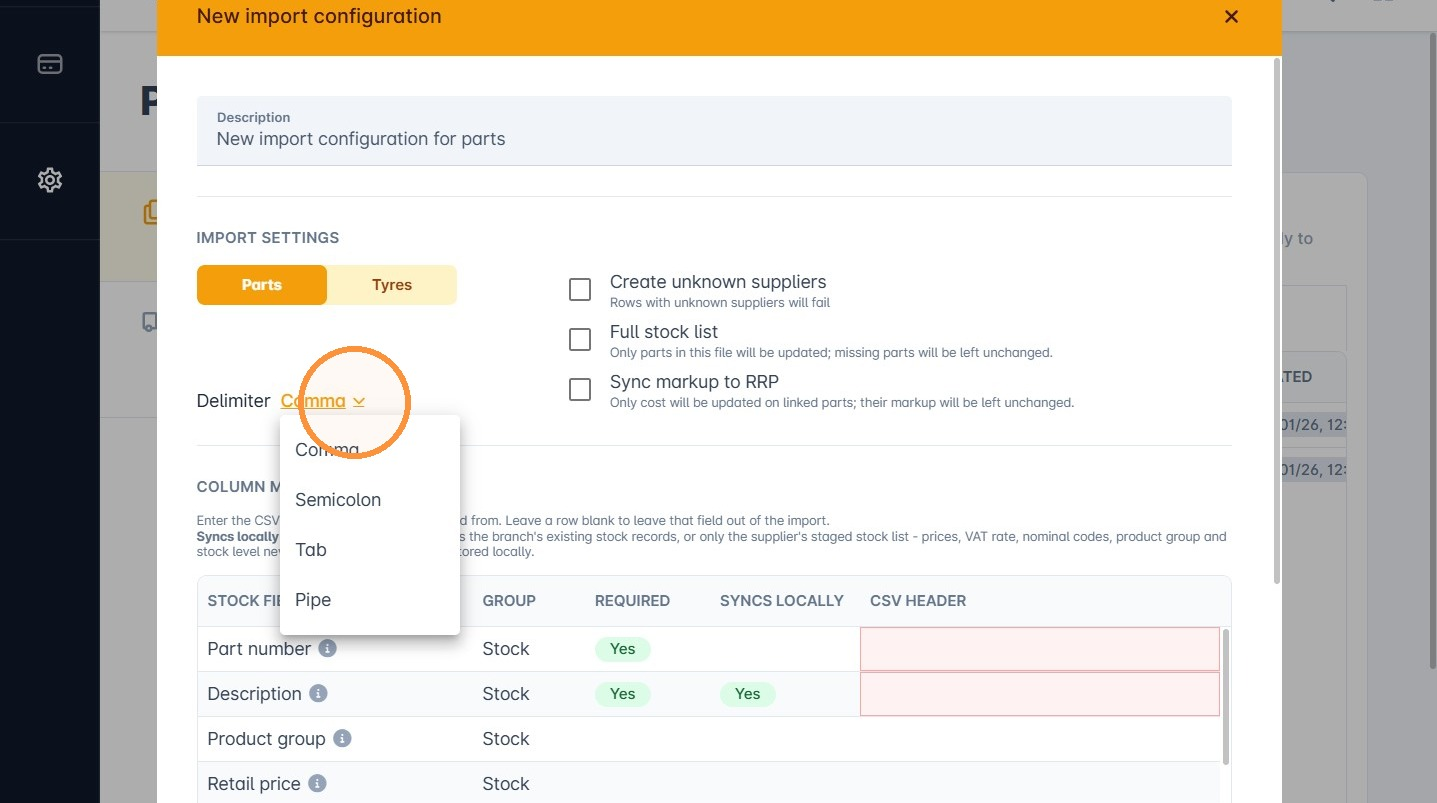
5. Select the Delimiter used in your CSV file: Comma, Semicolon, Tab or Pipe.
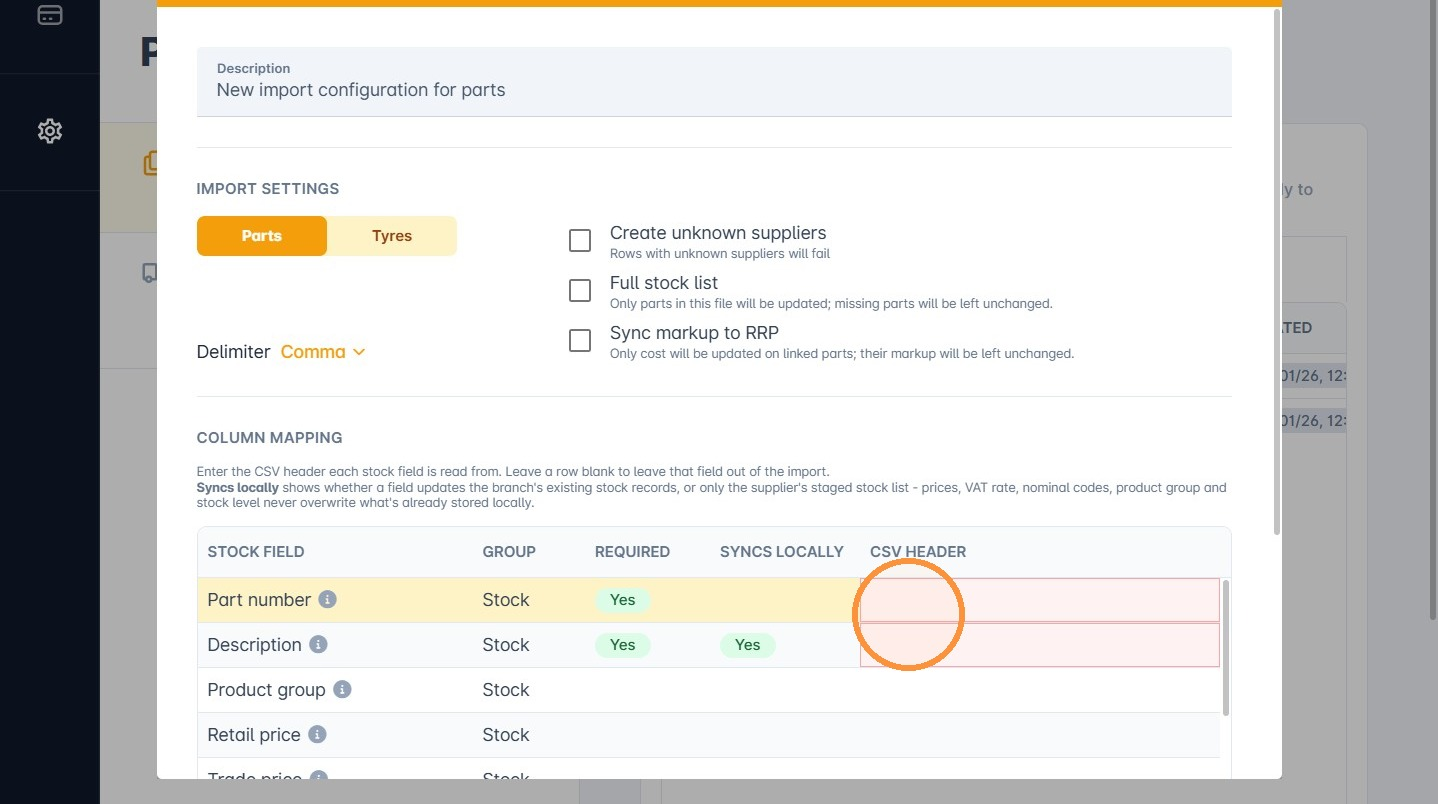
6. Enter the CSV header for each field, using the column names from the first row of your file. Mandatory fields are highlighted in red.
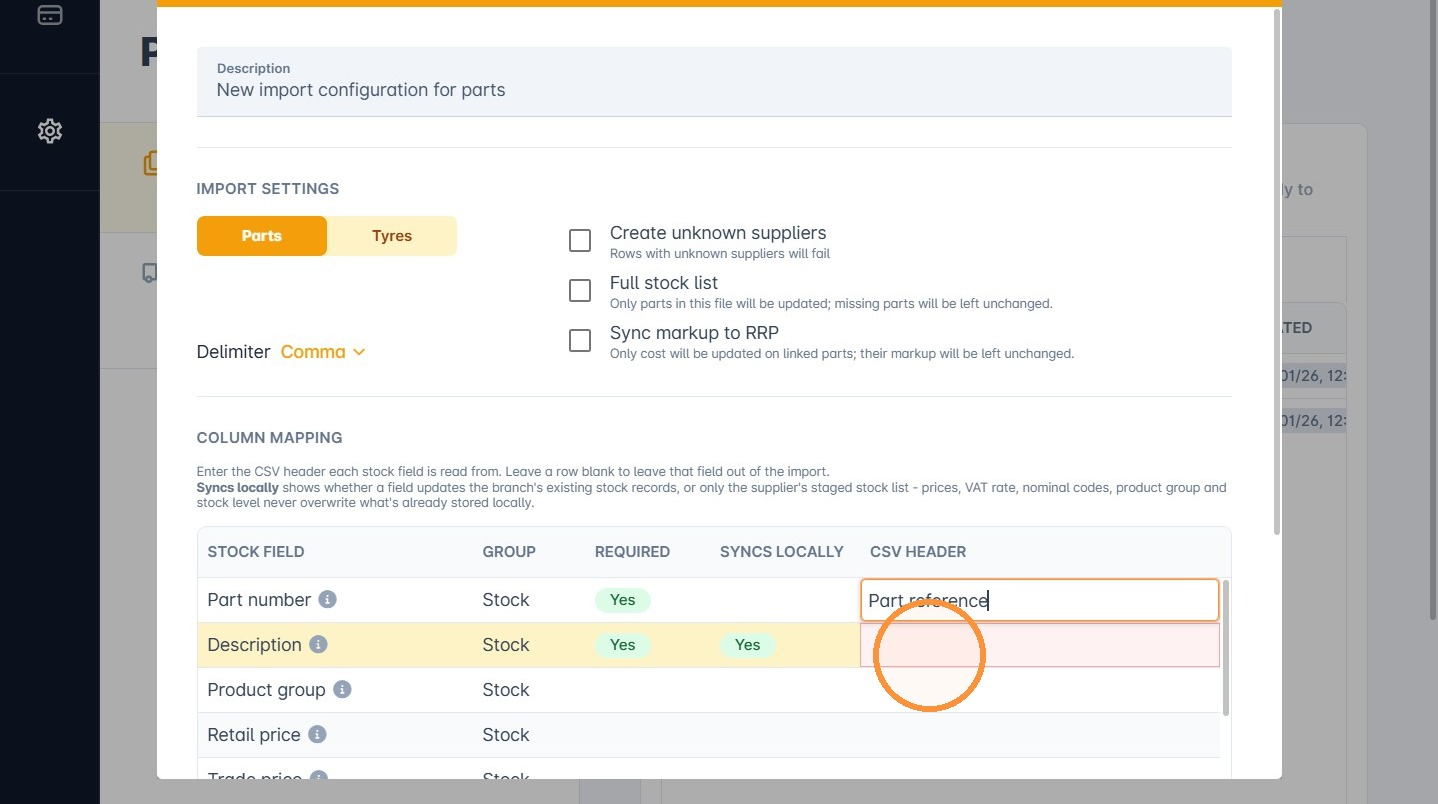
Example of a completed set of CSV headers:
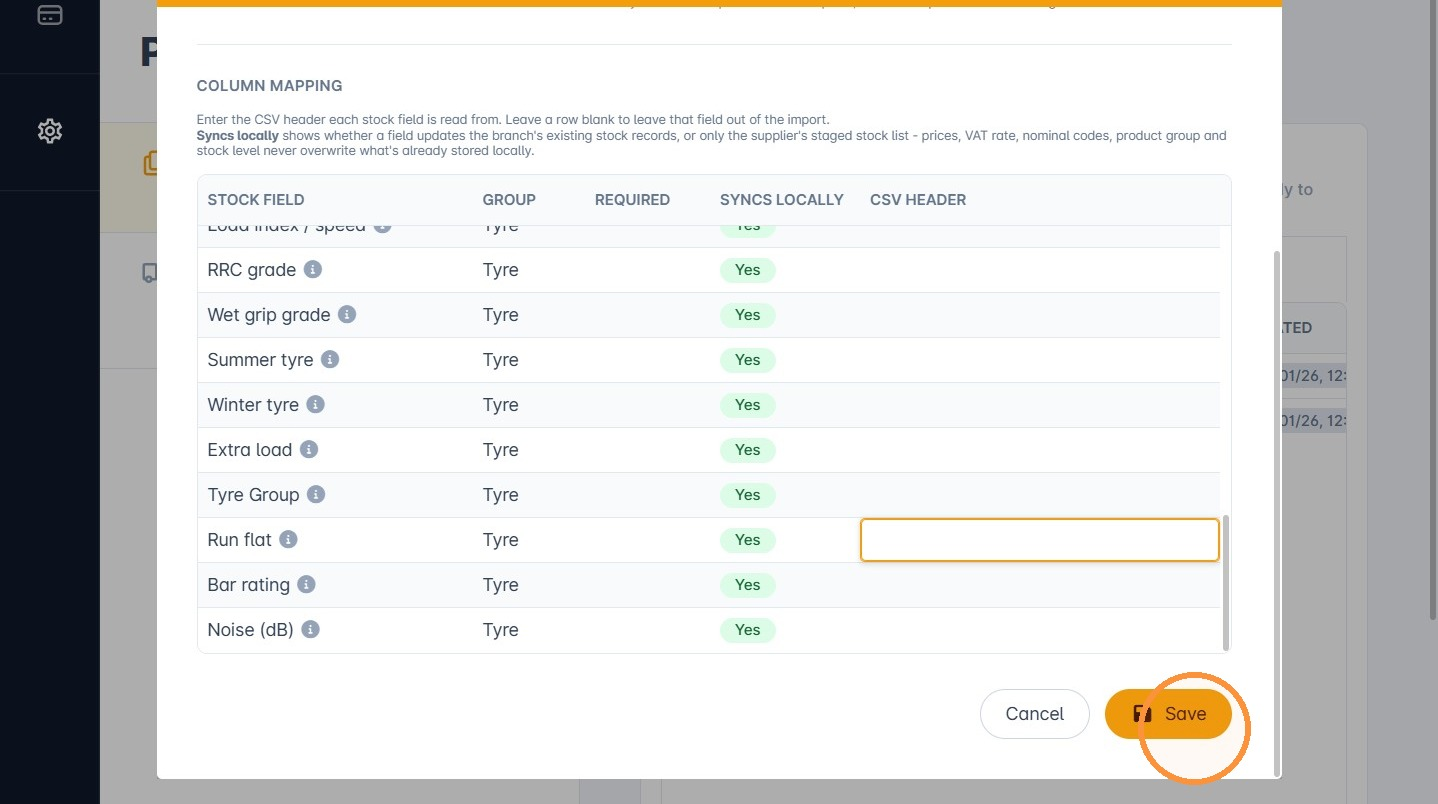
7. Click Save.
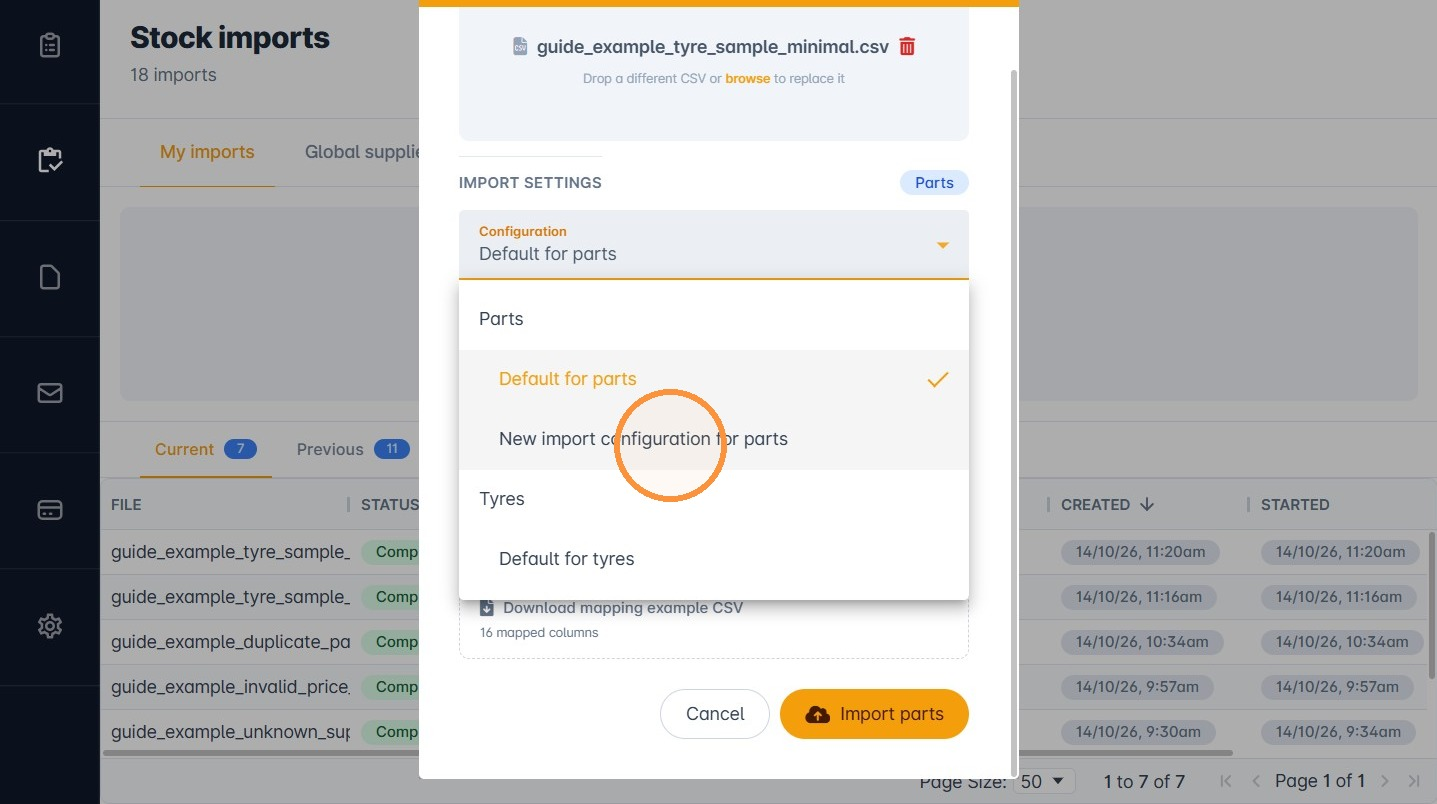
Your new configuration now appears in the Configuration list on the Stock imports screen, ready to select when you upload a stock file.
Was this article helpful?
That’s Great!
Thank you for your feedback
Sorry! We couldn't be helpful
Thank you for your feedback
Feedback sent
We appreciate your effort and will try to fix the article