Learn how to process a customer payment directly through your connected card terminal using the sales receipt interface. This guide shows you how to trigger terminal transactions from your sales dashboard.
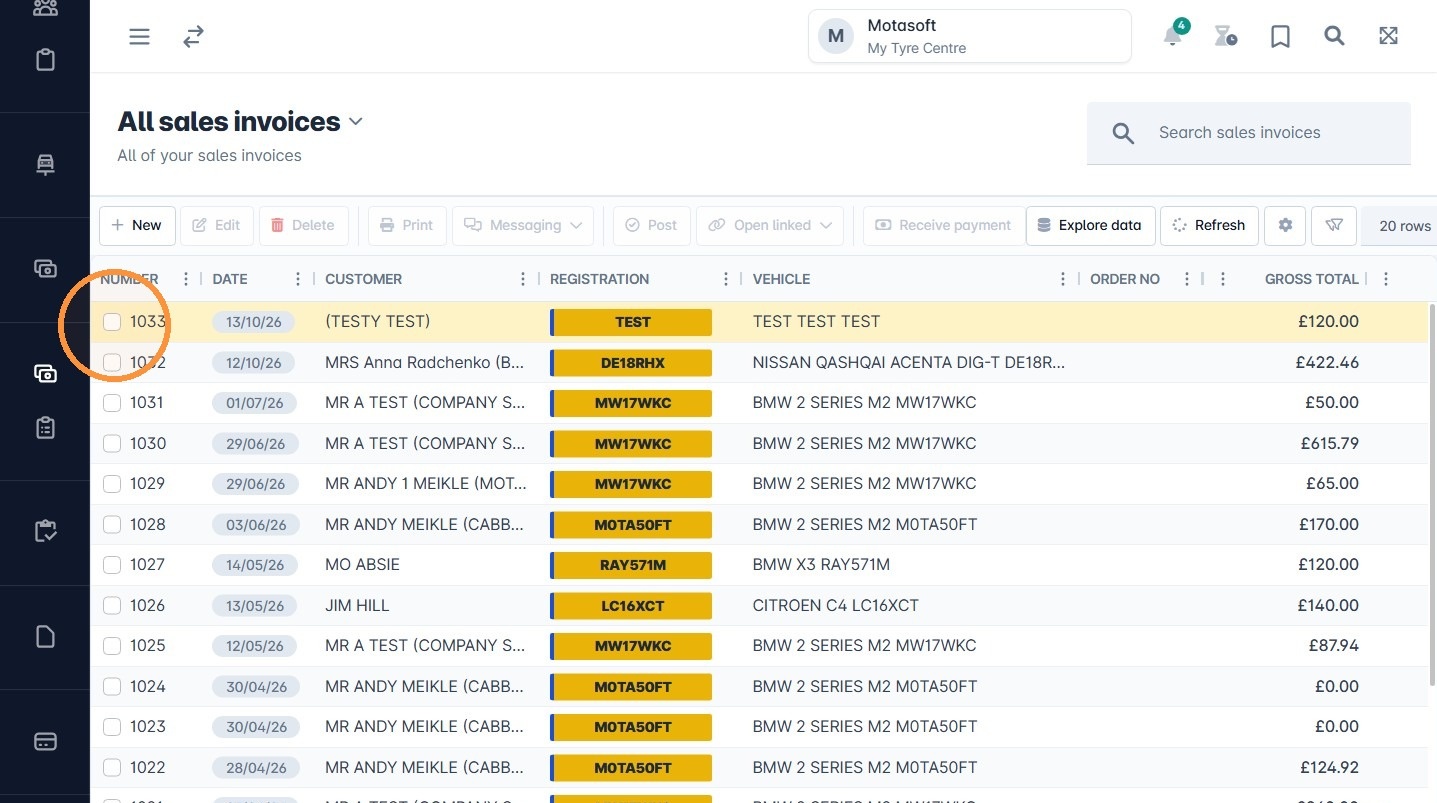
1. Navigate to the sales grid, and select an invoice for payment.
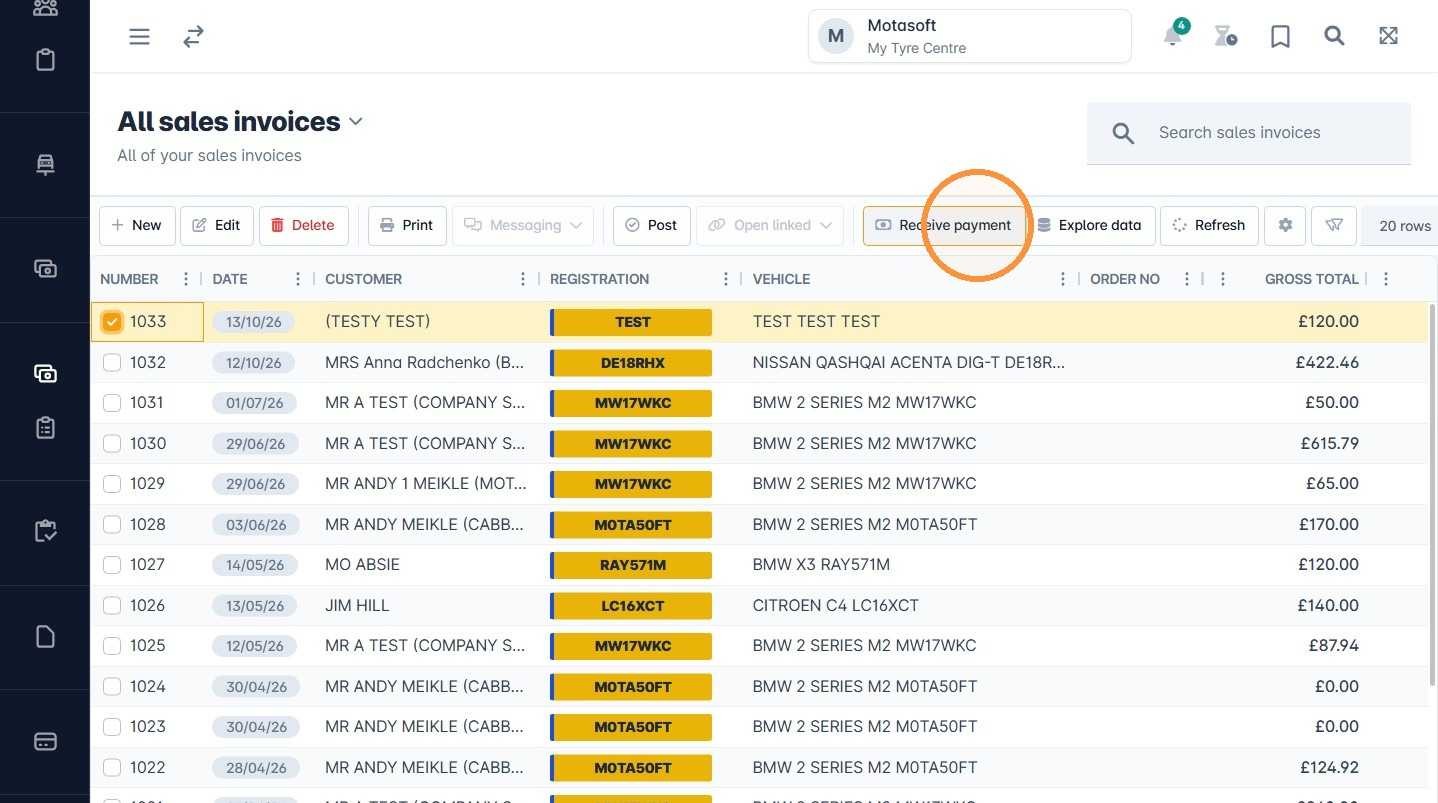
2. Then select Receive payment.
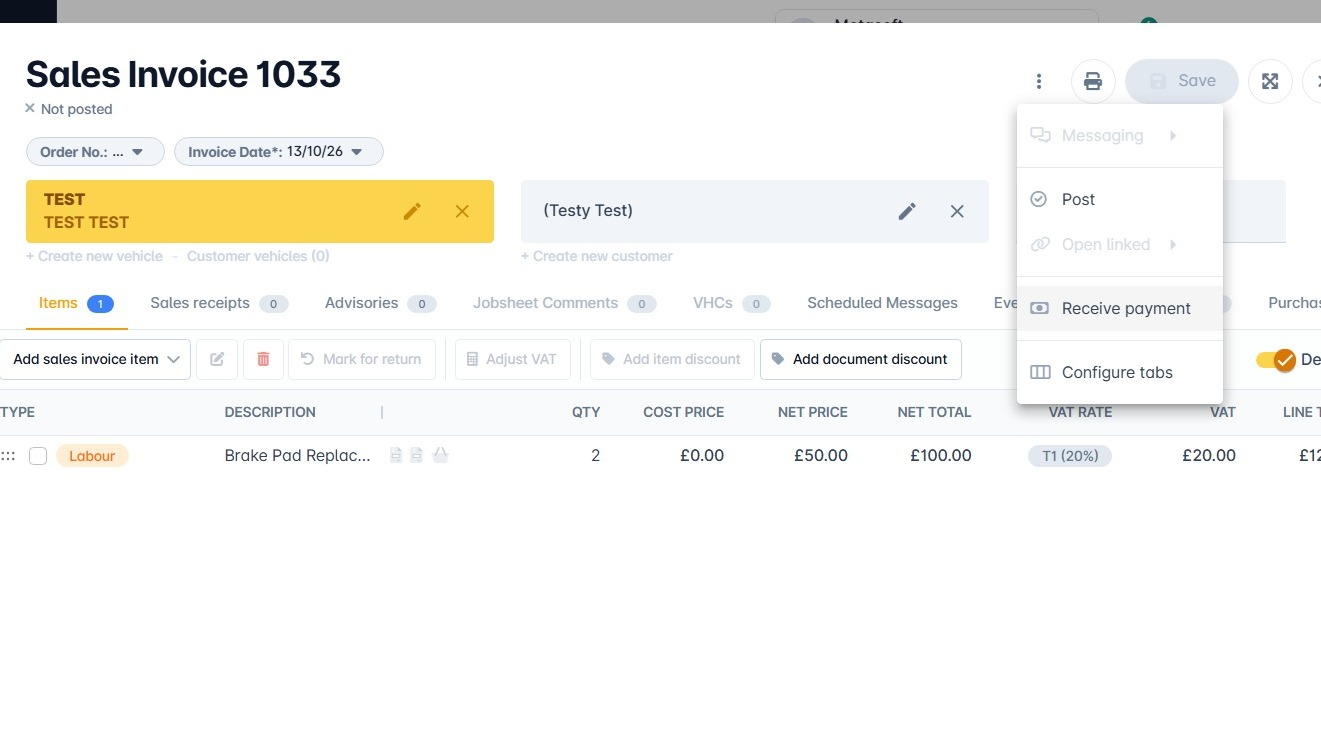
Tip: Alternatively, you can click the three dots on the top right of the invoice and select Receive Payment.
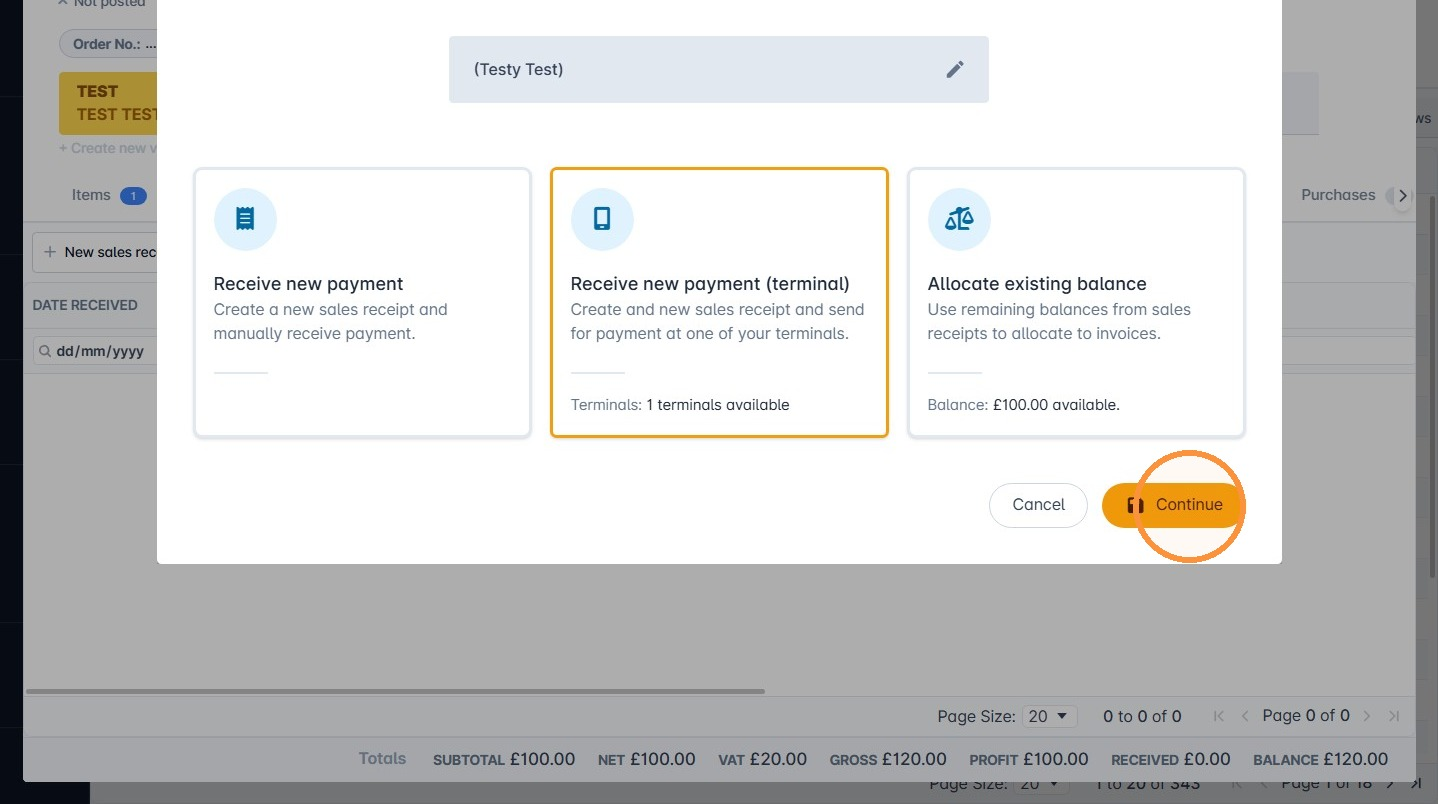
3. Select Receive new payment (terminal) and click Continue.
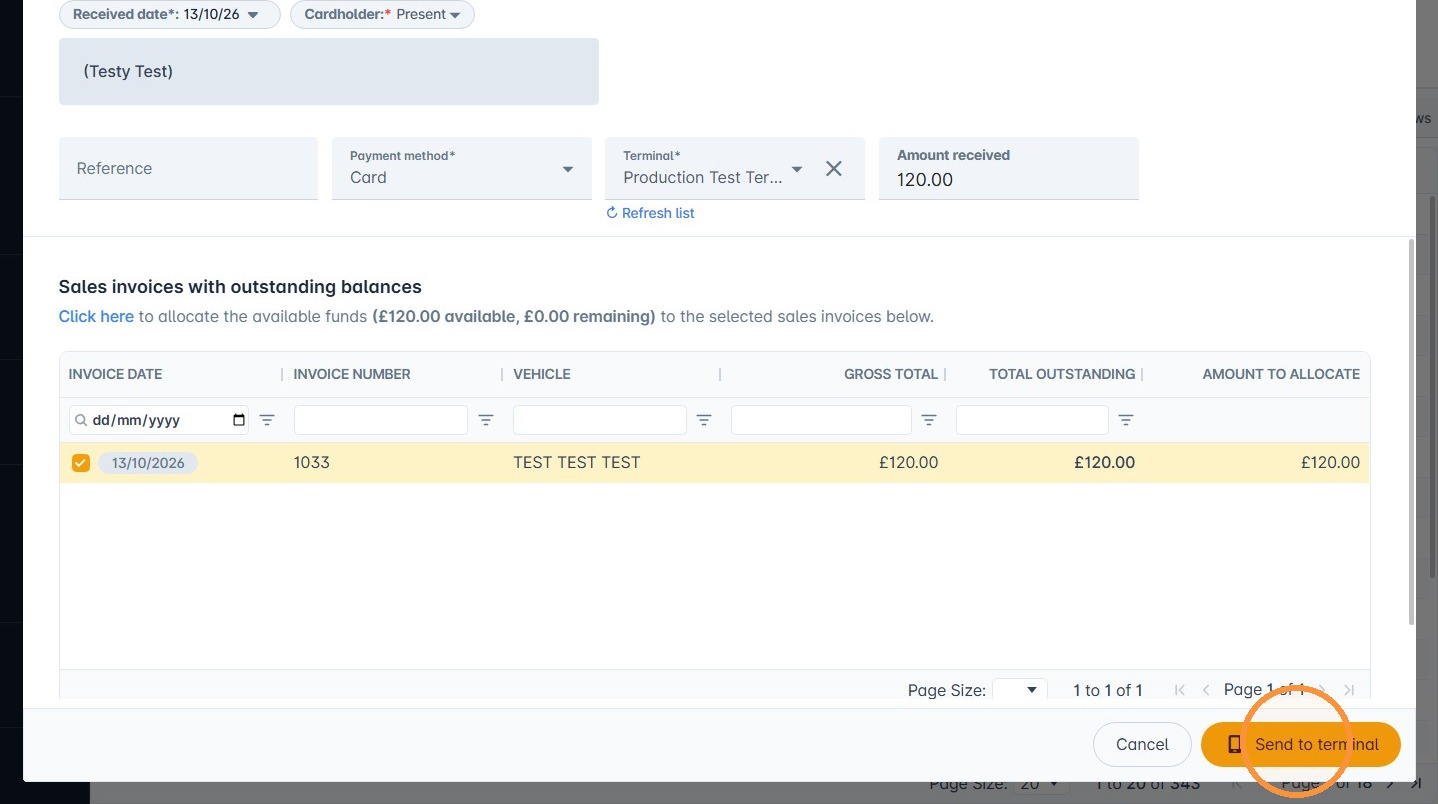
4. The outstanding amount on the invoice will be used as the payment amount by default. You can adjust this amount if needed.
To send the payment to the terminal, click Send to terminal.
5. Once the payment has been made it will automatically be linked to the invoice.
You may need to switch between integrated and standalone modes. To do so, follow these steps:
- Press F4.
- Enter the supervisor code.
Was this article helpful?
That’s Great!
Thank you for your feedback
Sorry! We couldn't be helpful
Thank you for your feedback
Feedback sent
We appreciate your effort and will try to fix the article